Home › WordPress › How to Choose a Free WordPress Theme: Checks That Matter M
How to Choose a Free WordPress Theme: Checks That Matter More Than the Screenshot
A WordPress theme lets you shape your site’s look and feel, but its biggest impacts on your experience aren’t visible in the preview image. When you’re choosing a free theme, those behind-the-scenes factors will decide how easy it is to work with, how fast your pages will load, and how flexible you’ll be to reshape the design over time.
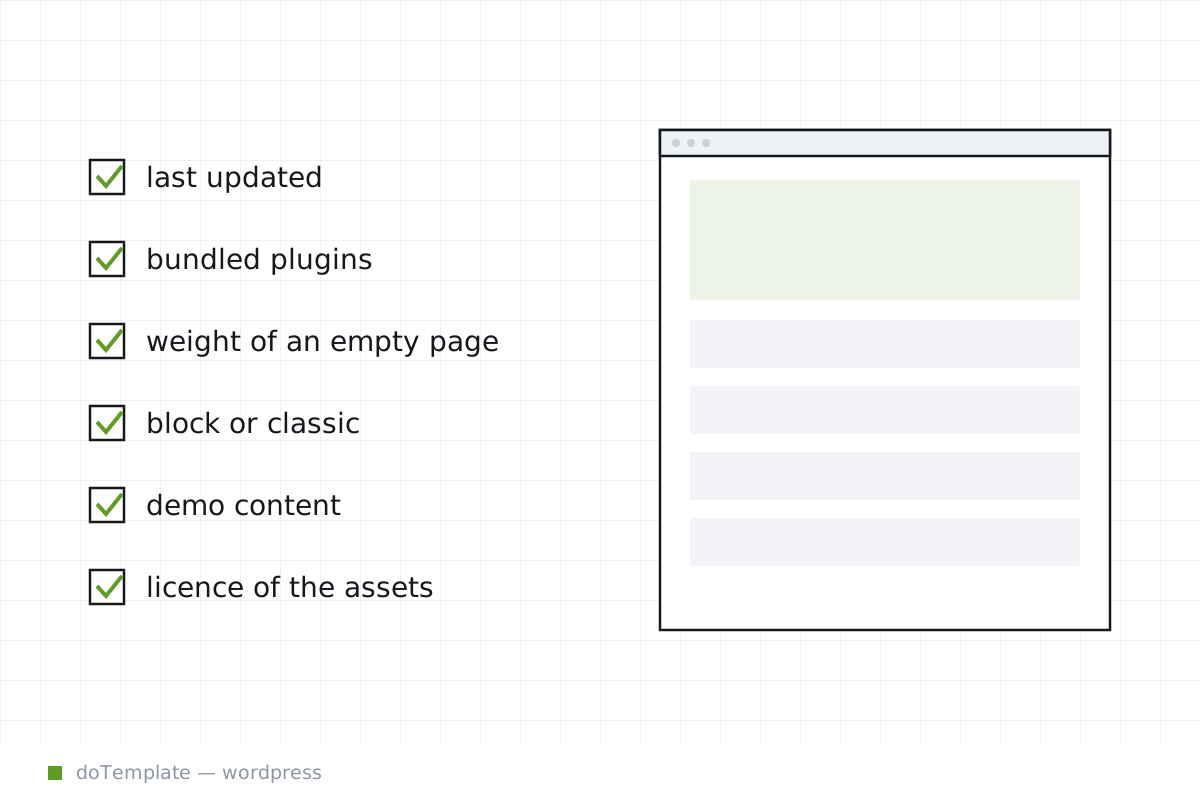
In this article
WordPress supports two types of themes, and they set the stage for the rest of this decision: block themes and classic themes.
First, Check the Theme Type
The difference matters most in terms of editability. Classic themes are built from PHP files and use a templating system that can look code-heavy. Block themes are built from blocks, making them belong in WordPress’s newest editing features for both content and layout.
On the WordPress theme directory, block themes are tagged in the sidebar. So if you want to edit all your site’s elements from the Site Editor interface, look for the Block Themes checkbox.
Here are the key differences:
- Block themes are built using HTML and a theme configuration file, and work best in the latest versions of WordPress. - Classic themes use PHP-based templates. They remain fully supported in WordPress, but don’t load in the Site Editor as fully.
When in doubt, the WordPress documentation is the most reliable reference to confirm a theme type before installing.
Check the Directory Metadata Before Anything Else
Your next step is also fast and free: open the theme’s page in the WordPress theme directory, and look for the dark-gray meta boxes. The one labeled Theme Details shows the release date in the format Last updated as well as the required version of WordPress.
This tells you whether the theme you’re considering is up to date, or if it’s perhaps been taken over by a new maintainer. This metadata is an early reject criterion.
Even more importantly, it tells you what WordPress version the theme requires, preventing potential compatibility problems.
Look for Hidden Dependencies
The next step involves the elementary math of bundles: does the theme offer you a bunch of plugins, and could you lose some of your functionality by disabling all but the main one? If a theme bundles a site-builder plugin or a page-cache service, for instance, those may be required to maintain core features. The easiest way to tell is to cross-reference with the theme documentation on WordPress.org or the author’s own site.
If the bundled plugins are removable, that’s a plus. If external code or service accounts are required, it’s an extra complexity to evaluate. Any bundled elements are not part of the core theme but add download weight to your site’s management.
Treat Demo Content as a Test, Not a Promise
More clues about the theme assembly are found in the demo-content importable on installing a new theme. Always trigger the import when you can, and then unpack what you’re seeing. You may find placeholders that are not part of the core free version, or are built from premium plugins not included. These can be confusing, but official documentation can help confirm what features are conditional and which are part of the free bundle.
If you do find demo content, deny the urge to commit: it’s great for verifying the theme’s potential, but should not be treated as a permanent template.
Measure What the Homepage Actually Loads
Speaking of resource loads gets us to the final core criterion, which is page weight. A theme that requests a lot of external resources or loads a lot of JavaScript and CSS even on an empty page will tax your site’s performance. A simple and minimal base is ideal, reducing overhead for your branding and content.
This can be measured either by a performance testing service such as GTmetrix or Pingdom or by selecting a pre-built template and checking the CSS and JS loading in the browser console. That last method requires some patience, but you’ll get a sense of the editing burden, since themes that carry a lot of nested designs can also be a lot to unravel.
Test on Staging Before Committing
The final step is a repeatable post-install check: set up a few posts and pages with real content, and then go through your site’s main touchpoints to see whether you can design the site the way you want. Switch between desktop and mobile views, ensure that you can change text and styling, that forms and links work as they should, and that nothing critical is stripped out or locked down by the theme.
A good theme should facilitate recovery from edits and provide access to XML, SVG and HTML for site elements. [HELD FOR VERIFICATION: a checklist item from an official WordPress guide to share here.]
Over time, having a repeatable staging process like this one can help you evaluate themes better, by taking the focus off features and decision weight off demo content, and bringing it back to key indicators of future usability.
If you’re picking a theme because it looks great in a thumbnail, you’re already off the mark. Only by looking at updates, dependencies, and a demo import can you decide if it’s built to keep your site functioning well in the long term, not just the long lists of demos.