Home › WordPress › Explained: Full Site Editing, Simplified for Theme Users
Explained: Full Site Editing, Simplified for Theme Users
One of the most significant changes in recent versions of WordPress is the introduction of Block Themes and the Full Site Editor. If you use a Block Theme, your editing experience will be different, since the old way of editing themes won't exist for Block Themes. You'll Edit Themes directly in the Full Site Editor, rather than with PHP like you might be used to.
In this article
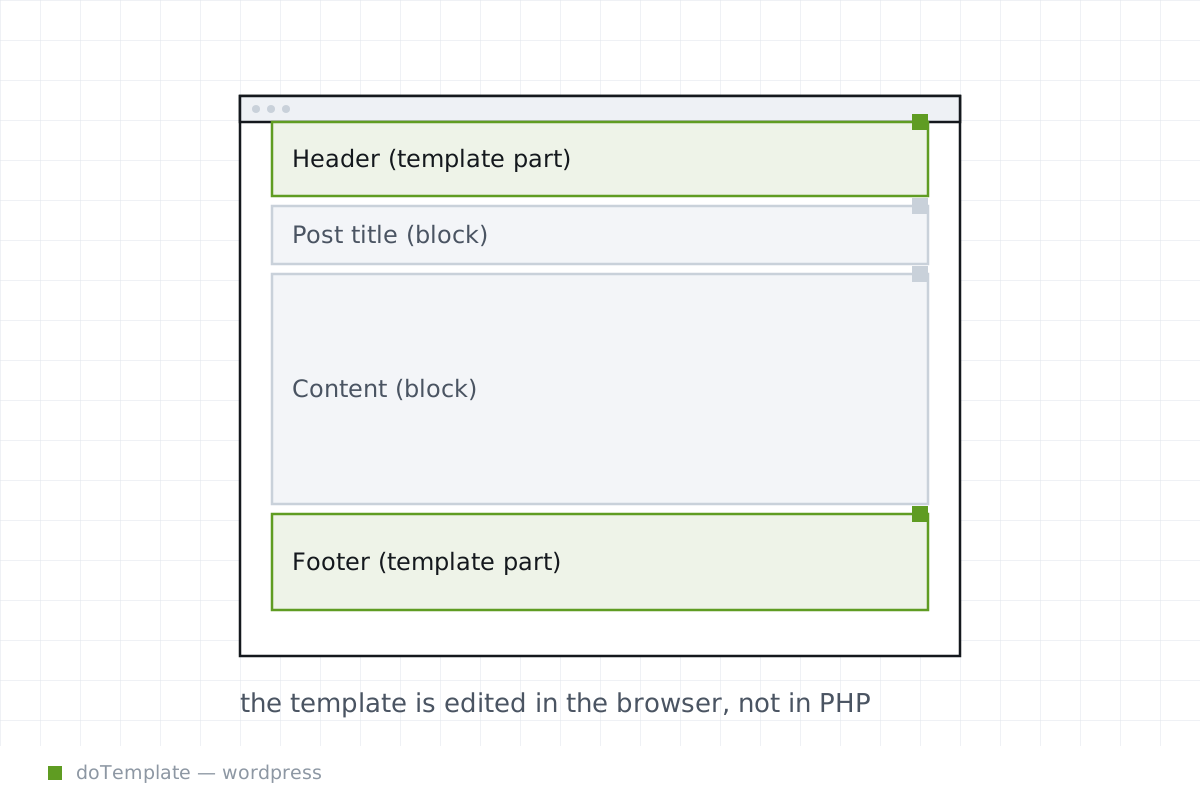
In WordPress Block Themes, templates are editable block markup files stored in the theme’s /templates folder, and template parts are block markup files stored in the theme’s /parts folder. These files, known in the developer documentation as "block templates" and "block template parts," are what you'll edit in the Site Editor rather than directly in the file system.
Templates and Parts
Editing a block template or part is done by adding, removing, or rearranging blocks in the specific template. To access the Site Editor, go to Appearance > Editor. This section of WordPress contains the templates for your site, the template parts that templates include, patterns you can insert into content, and style variations for templates and template parts. Each type of content is represented by category in the sidebar: Templates, Template Parts, Patterns, and Styles.
To edit a block template, browse to the Templates section and click on the arrow next to a category (Singleton, Pages, Index, or Archives) to show the available templates. Click on the template to open it, and use the Site Editor interface to edit the layout with blocks. Block template parts popularize certain block configurations and make them reusable throughout your WordPress site. Template parts are like blocks that combine other blocks. Site Editors can add new template parts or edit the default template parts included with the theme.
Centralized Global Styles
Most of the theme setting options that used to be scattered across the WordPress dashboard, and that used to require a child theme, are now centrally maintained in theme.json and editable in Global Styles. Global Styles in the Site Editor encompasses a theme’s color palette, gradients, duotones, shadows, font families, font sizes, CSS custom properties, custom templates, and template part areas.
The theme.json file for a WordPress block theme is the configuration file that defines the theme’s design and behavior. It tells WordPress what templates, blocks, and styles are available for customization, as well as any options for managing the post styles. theme.json can define a color palette, gradients, duotones, shadows, font families, font sizes, CSS custom properties, core block presets, and more. It’s used to introduce values that can be overwritten later in the site editor.
The Global Styles controls are found in the sidebar of the Site Editor. Use the color picker for theme colors, and see the effect in the editing preview. Use the Typography tools to change font sizes and weights, and choose a typeface from the font library. Adjust layout controls, button styles, or add a custom background.
What the Site Editor Contains
The Site Editor is a visual design tool for building and maintaining a theme. It includes the tools for working with templates, template parts, and Settings (Global Styles and Theme.json Editor). From here, you can add new templates, reorganize templates, and customize individual templates and template parts. You can build a template by combining existing block template parts, or build your own template parts. You can create and update styles applied across your site.
The editor offers live previews of block styling changes while a second cursor navigates code, allowing simultaneous block delivery and coding.
Templates live initially as files in the theme folder, but they can be editable in the Site Editor UI. The Site Editor is a major part of the full site editing experience, because it allows users to edit part of the theme in a way that feels familiar.
What Changed for Customizer Users
Customizer functionality is largely absent from Block Themes. If you’re accustomed to using the Customizer to arrange templates and template parts, choosing fonts, and fine-tuning fonts, colors and other site styles, you’ll now do that work in the Full Site Editor in the WordPress Admin.
The WordPress dashboard used to include separate menus for editing fonts, colors, and more, using the Customizer. With the Full Site Editing experience, the “Appearance” menu item in the dashboard serves as a hub for all your theme customizations. You access the Site Editor here to customize any of the templates and blocks throughout your site. The theme.json file determines what options are available in the Site Editor and How the block templates are interpreted and displayed.
What Changes Still Need a Child Theme
Block Themes don’t need most of the changes that used to require a child theme. That said, creating a child theme of a block theme is still a common best practice, especially for customizing a theme.json file or snippets of header.php or footer.php that a block theme might still use.
In many Block Themes, changes made through the Site Editor in Global Styles or theme.json become part of custom build of the underlying block theme. You’ll see the result saved as a theme.json file in your WordPress theme in the /wp-content/themes directory. Changing this file should still be done in a child theme, in case a theme update overwrites the file. Also, controller code added to header.php or footer.php should be done in a child theme, just as before.